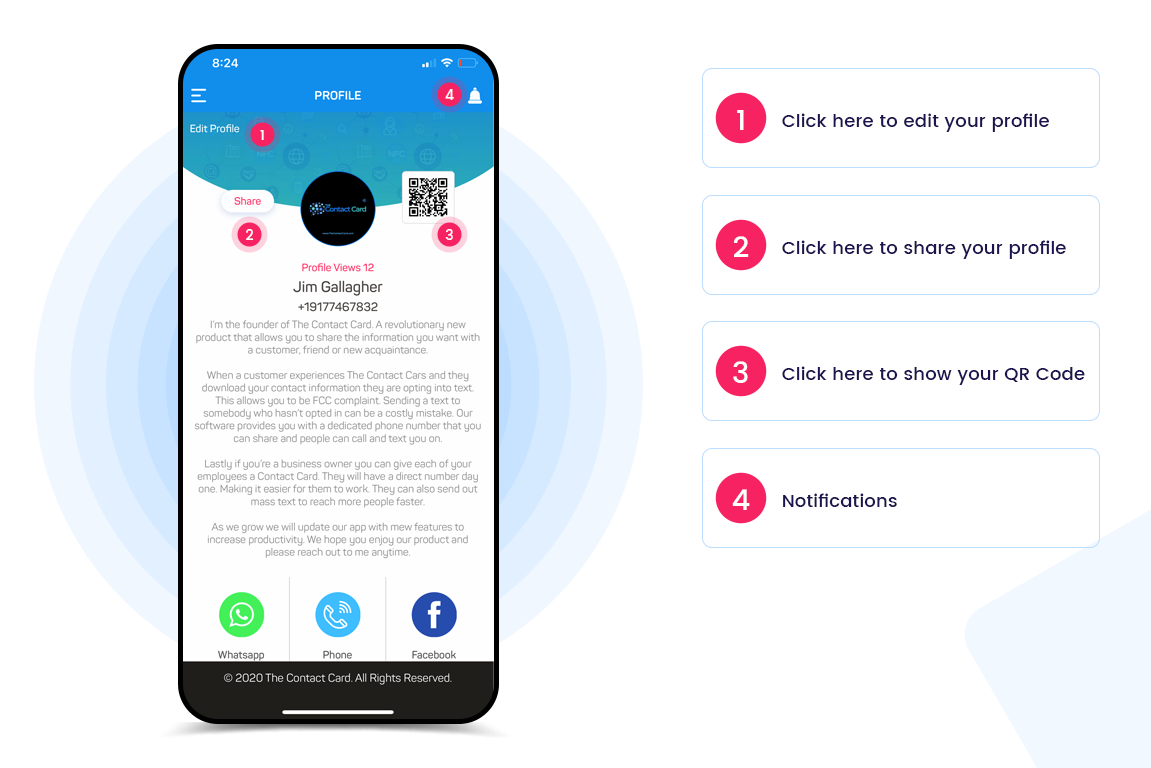
How to navigate the profile screen?
- Click here to edit your profile
- Click here to share your profile to other people.
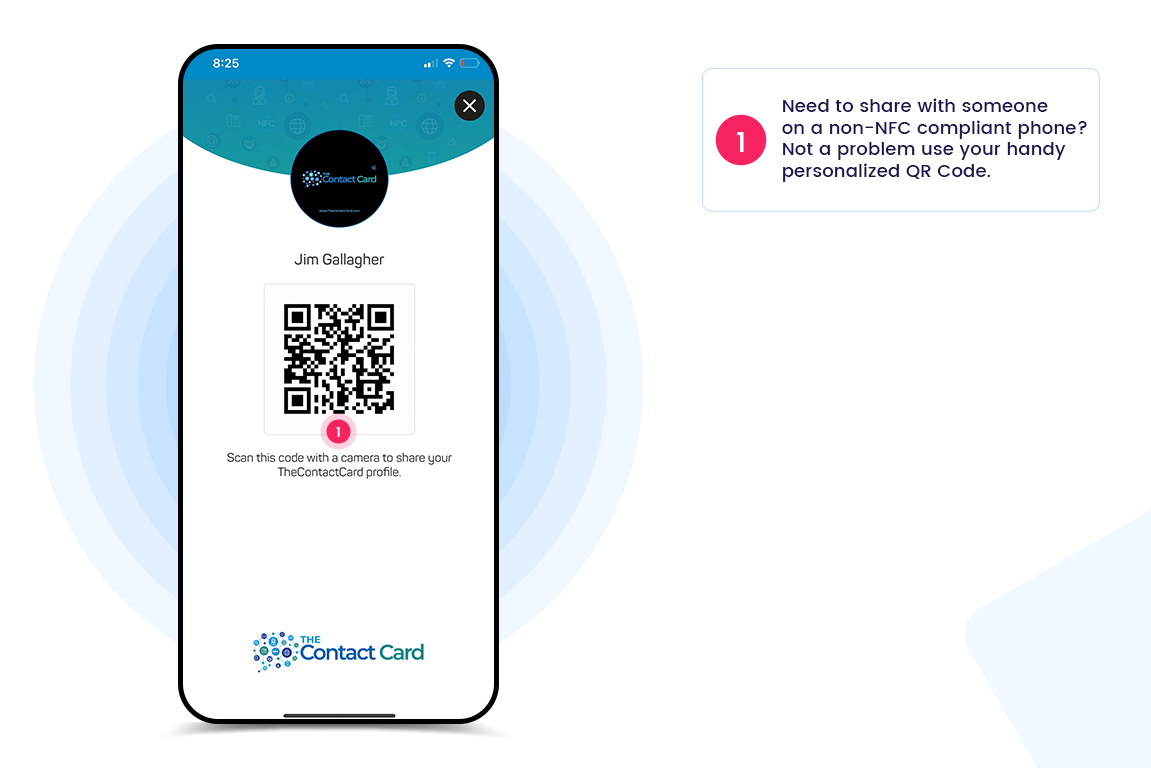
- Click here to show the QR code which then can be scanned using a phones camera. The result is a link will appear allowing the person to see your profile and download it
- Click here to see notifications.
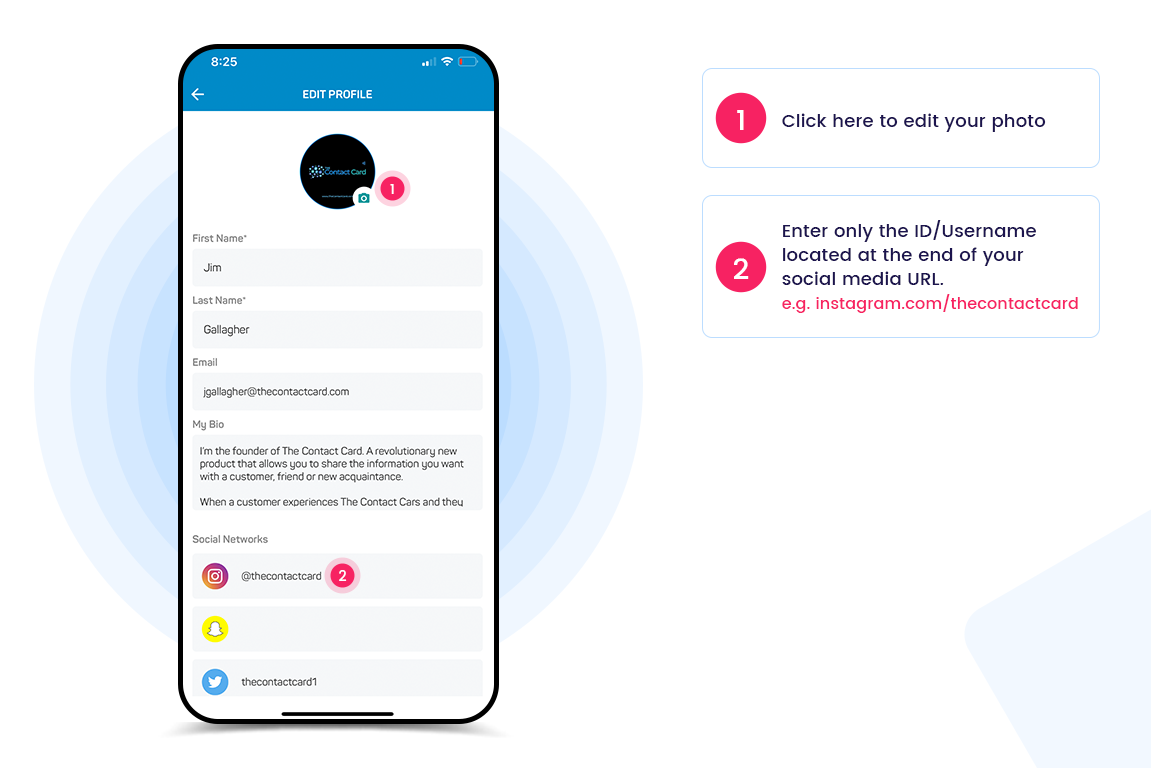
How to edit your profile?
First click edit profile on the home page.
A. Click the camera to edit your profile pic.
B. Fill out your information including a short bio.
C. Your social networks are prefilled with the URL except your user name. The prefilled part you can’t see. For informative purposes we will show you the URL below for the social networks we support.
- Instagram: https://www.instagram.com/thecontactcard
- Snapchat: https://www.snapchat.com/add/username
- Twitter: https://www.twitter.com/thecontactcard1
- Facebook: https://www.facebook.com/TheContactCard/
- Linkedin: https://www.linkedin.com/in/username
- Youtube: https://youtube.com/user/channel/UC56H7nAb7omPdQEZgRnYW_A
- Whatsapp: 15555551212
- TikTok: https://www.tiktok.com/@thecontactcard
- Website: https//www.thecontactcard.com
- Custom link: https//www.thecontactcard.com
- Phone: 5555551212
- Email: Sales@thecontactcard.com
- Address: 10 Test St Hometown NY 10014
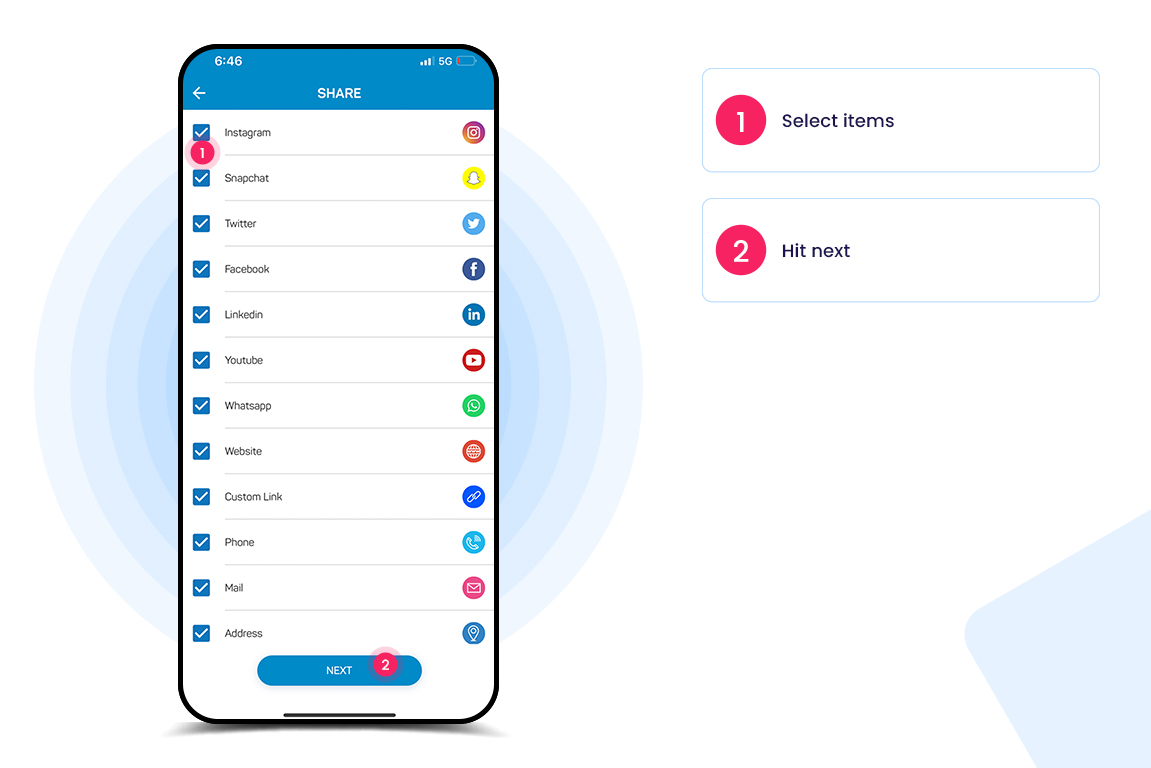
What do you do after you click share from your profile home page?
Select the items should would like to share and hit next.
1. Select items, they are defaulted as all being selected. If something is blank in your profile that link will not be shared. The app will only send what is filled out in your profile if something is blank that item wont be shared.
2. Hit next
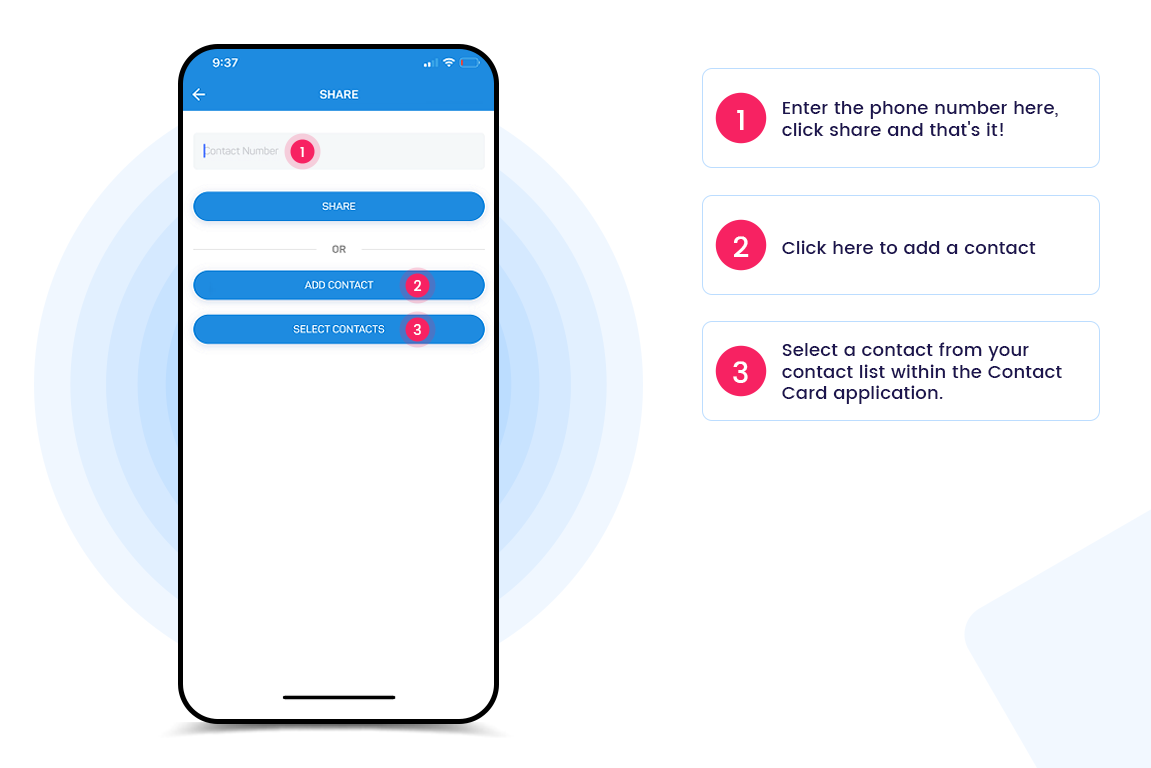
What do I do after I have selected the social connection on the share page?
1. The top line you will enter the person’s phone number that you are trying to share your profile with. (Enhanced Version Only) On Standard version just click share and you will select how you want to share.
2. Click Add Contact and fill out all the fields and hit save. This will also send out your profile. Standard version will only send it out via email when this option is chosen.
3. You can also select a contact if you need to resend your profile to somebody.
How to use the QR code and when?
Once you click the QR code on the profile screen all you need to do is have the person that you want to share your profile with is open their camera app on their smartphone and scan the QR code. A web link will appear if their phone is compatible. You will only use this when their phone is not NFC compatible.
What is in the notification section on the profile screen?
Under notification you will see sent messages, received messages, voicemails, phone calls and email messages. (Enhanced Version Only)

What is on the Contacts page?
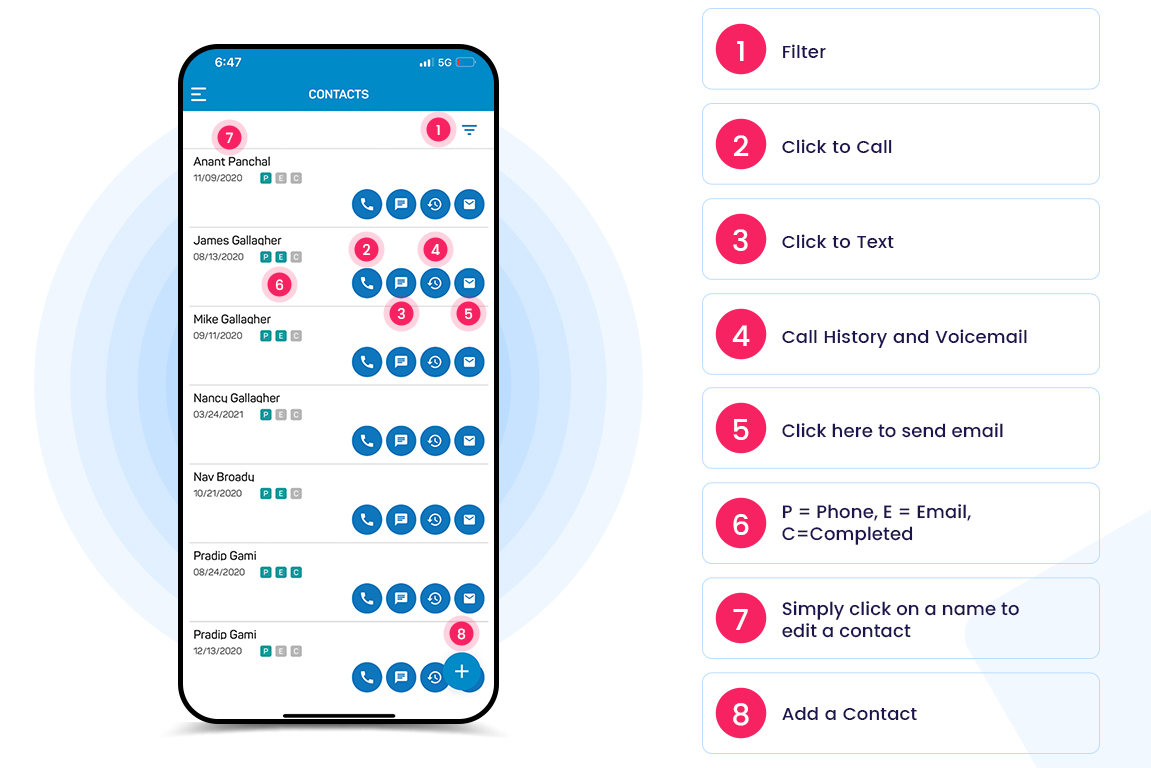
- Filters- Filter the list by name or date when the contact was added
- The phone icon will call the selected contact
- The message will text the contact selected and text history with that contact
- The clock with reverse hour shows you the call history and voicemails
- Click here to send email
- The PES next to the contact means P=Phone E=Email C=Completed
- To edit the contact click on the name
- The plus sign is to add the contact into the system
How to edit contacts?
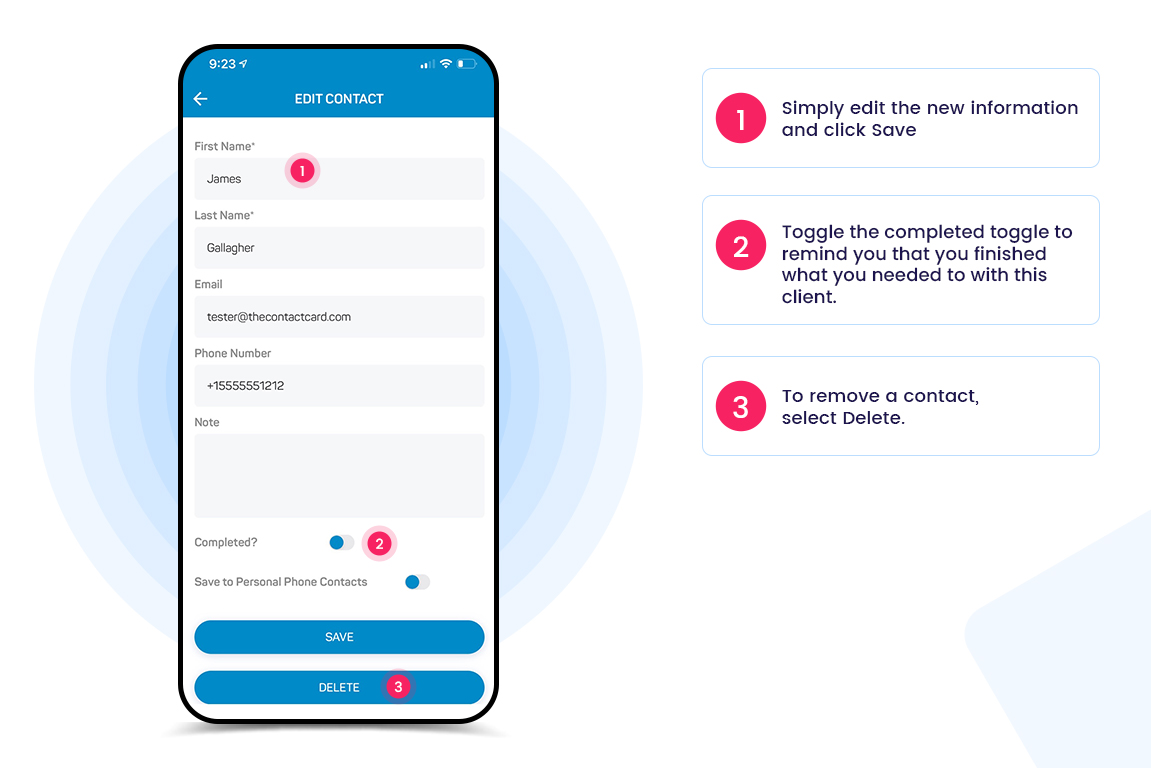
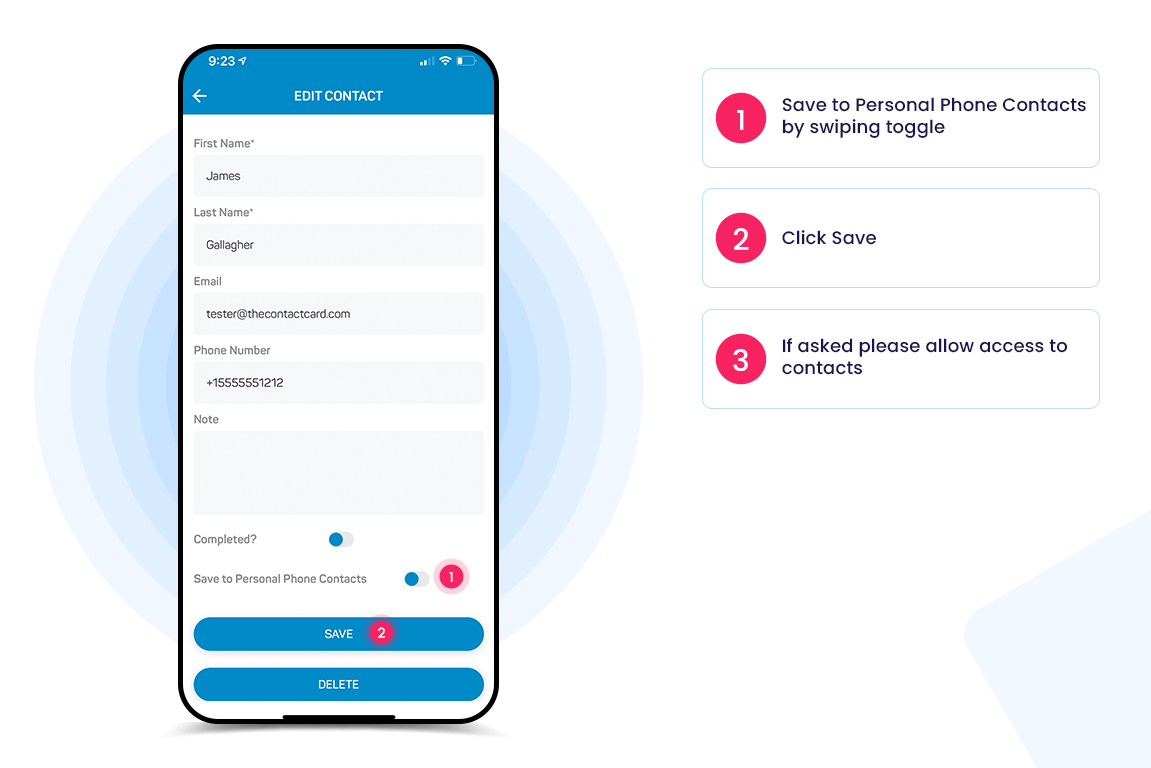
Go to the contact screen and click on a contact’s name and the following page will appear allowing you to edit the contact. After editing the contact click save. Toggle the completed toggle to remind you that you finished what you needed to with this client. Example they purchased a house from you. If you want to delete the contact just click delete and click yes to confirm. If enabled you can also save the contacts information to your phone by swiping the toggle next to “Save to Personal Phone Contacts”. The first time you will be required to allow access to your phone’s contacts
What is an announcement and how to send one?
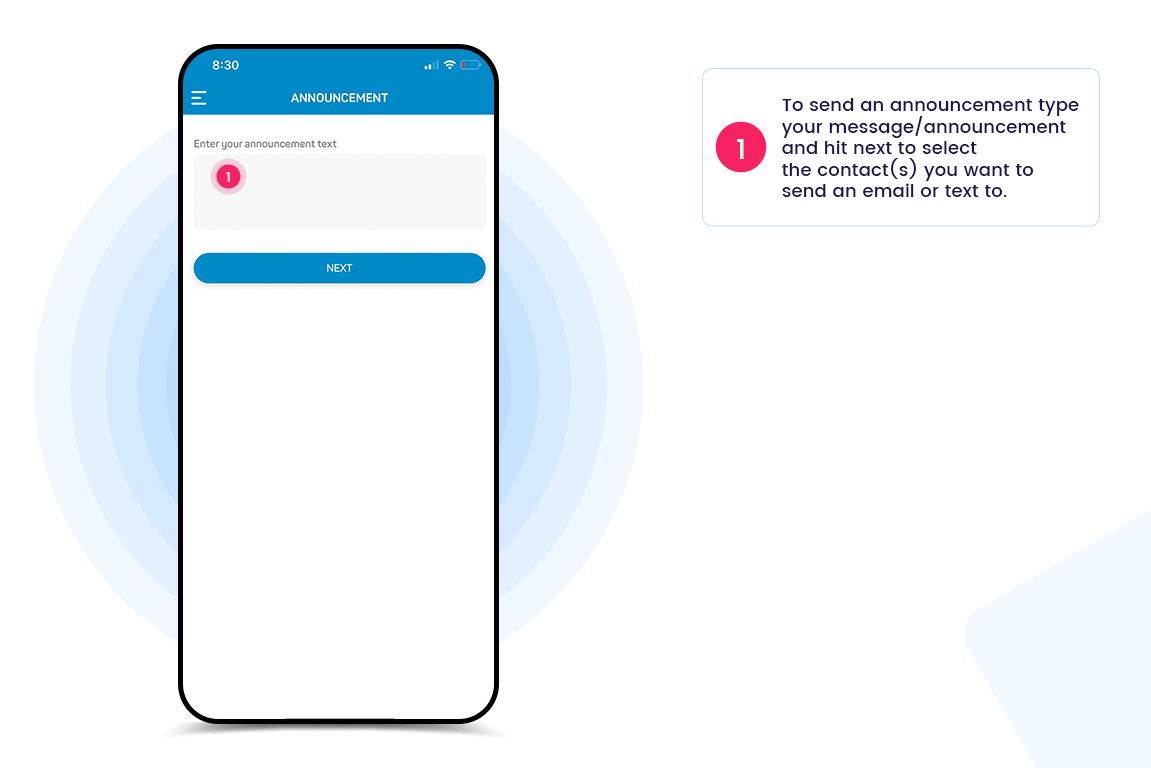
An announcement is another term for sending out a text blast (Enhanced Version Only) and email blast (available on both Standard and Enhanced Versions). Simply type your message that you want to send out to multiple people and hit next and select the contacts you want to send the announcement to.
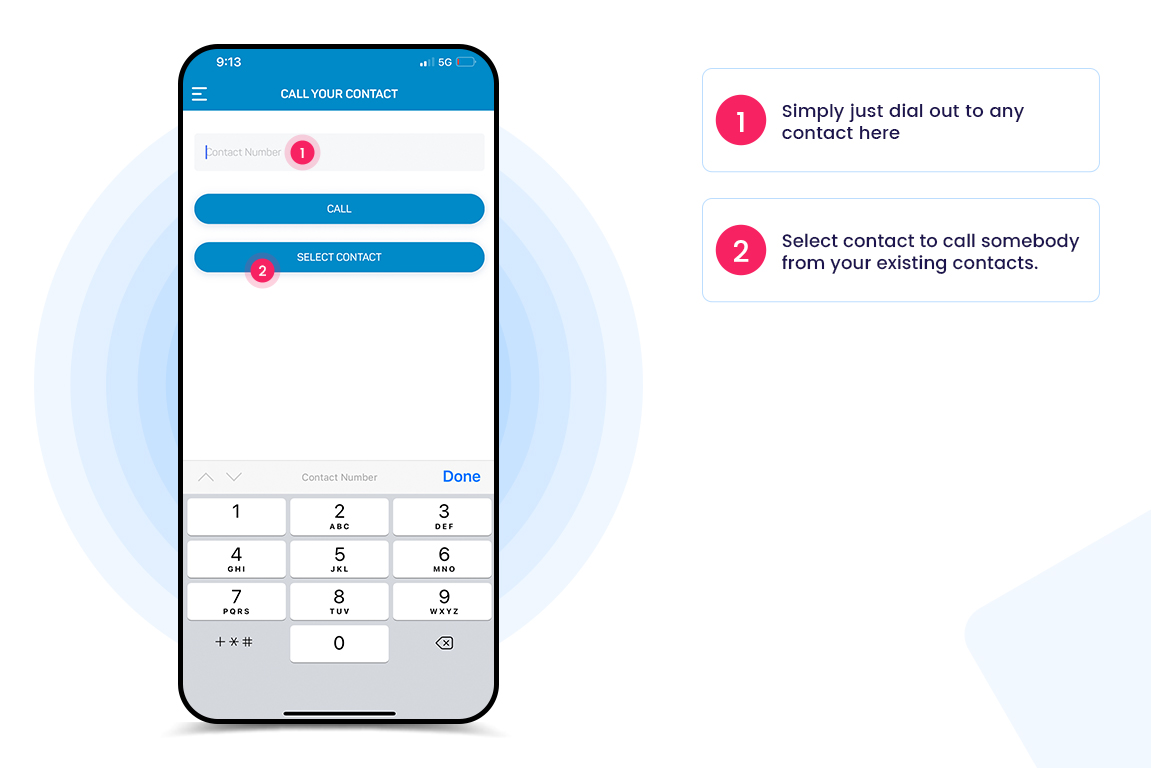
What is call your contact? (Enhanced Version Only)
It’s a way for you to make a call out of the app to whomever you want to call. (Enhanced Version Only)
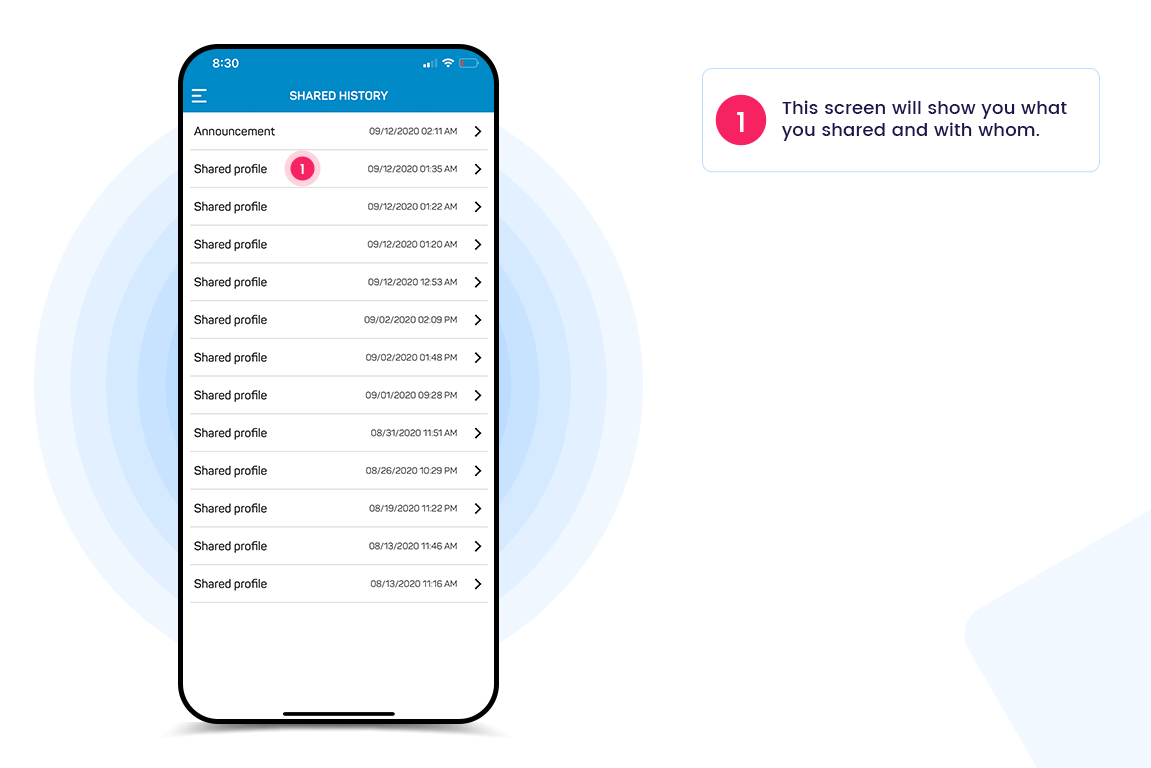
What is shared history?
Shared history shows when you have shared an announcement and what was said and to who it was said to. (Standard and Enhanced version) It also shows when you have shared your profile and with whom and what you shared. (Enhanced version only)
What is share updated profile and how to use it?
When enabled you will be able to update ALL of your Contact Card Contacts that something has changed within your profile. Example; change of address, number or more.
1. Toggle whether or not you want to send updated profile via text (Enhanced Version Only)
2. Toggle whether or not you want to send updated profile via email
3. Hit Share to send

How to save Contact Card Contacts to your phone's contacts?
1. When enabled you will see a Save to Personal Phone Contacts toggle under the actual contact within the application.
2. Click the toggle and the hit save. This will then save the information to your personal cell phones contacts.
3. Note you may be asked to allow access to your contacts. Please accept, if you accidentally select no just go into settings in your phone and allow
Why isn’t my Contact Card or POC sticker working on iPhone?
The Contact Card and POC sticker use NFC technology. The phone that you are trying to swipe must be NFC reader compatible and must be on.
Apple: iPhones XS, XR, 11, 11 Pro, 12, and 12 Pro are currently able to read NFC. iPhone7,8 or X can read NFC tags if they are on the latest version of iOS 14. You have to go into your control center and select the NFC reader. Then simply scan The Contact Card or POC sticker.

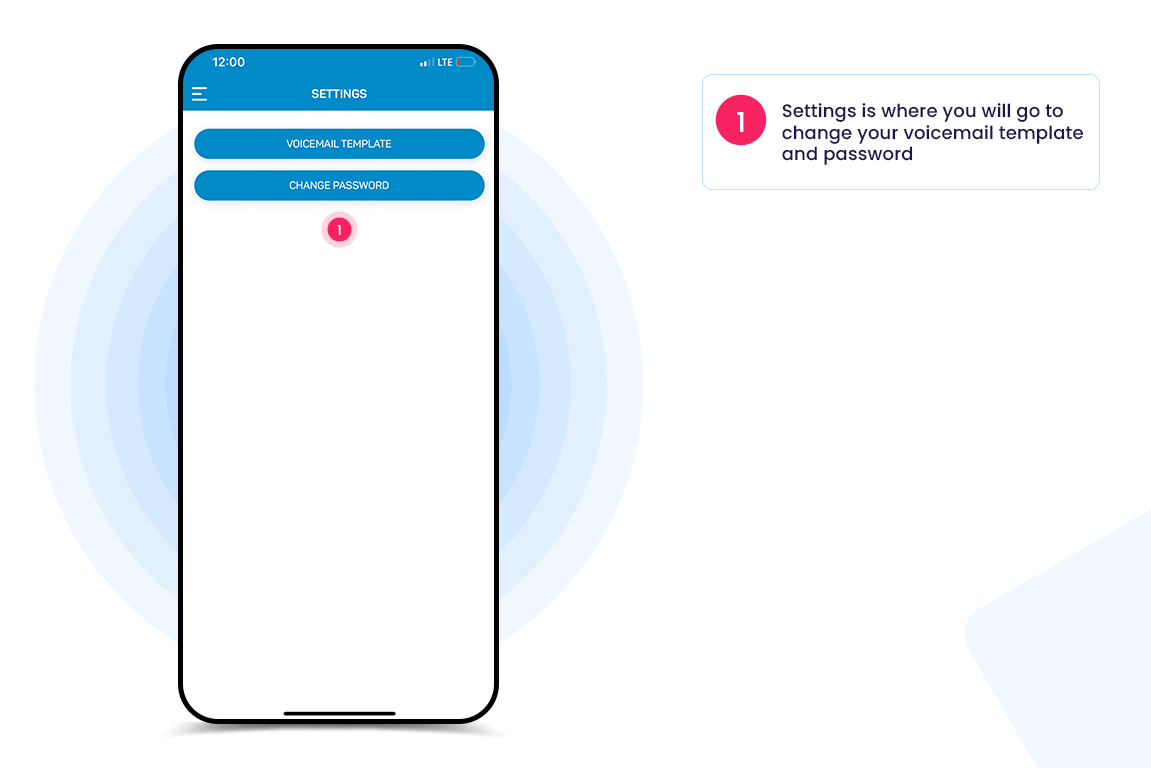
What are settings?
Settings is where you will go to change your voicemail (Enhanced Version Only) or password.
Why isn’t my Contact Card or POC sticker working on Android based phones?
The phone you are trying to scan must have NFC technology. Here is how to check:
- On your Android device, tap on “Settings.”
- Select “Connected devices.”
- Select “Connection preferences.”
- You should see “NFC” and “Android Beam” options.
Depending on your device, these two options could be located in a different folder. If you can’t find them, open up the settings menu, tap the search icon on top, and type in “NFC”. If your phone has it, the NFC option will show up.
If your device has NFC, the chip and Android Beam need to be activated so that you can use NFC:
- On your Android device, tap on “Settings.”
- Select “Connected devices.”
- Select “Connection preferences.”
- You should see “NFC” and “Android Beam” options.
- Turn both of them on.
- Smartphones’ NFC capabilities operate in tandem with Android Beam.
- If Android Beam is disabled, it may limit NFC’s sharing capacity
How to Delete Your Account ?
- Open the Menu.
- Go to Settings.
- Choose "Delete Account".